IPTV Connection Problems Quick Fixes for Smooth Streaming
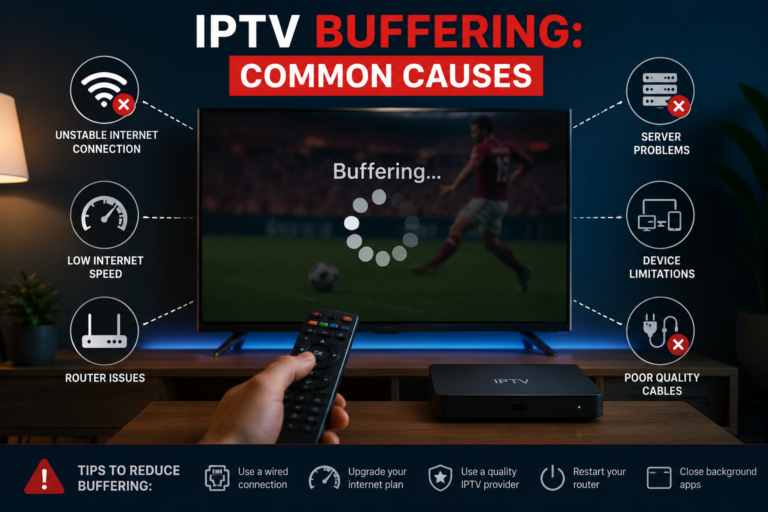
Are you tired of your favorite shows freezing right at the best moment? Dealing with IPTV connection problems can be incredibly frustrating when you just want to relax. Whether you are watching live sports or a new series, a stable feed is essential for a great experience.

Edit
Full screen
Delete
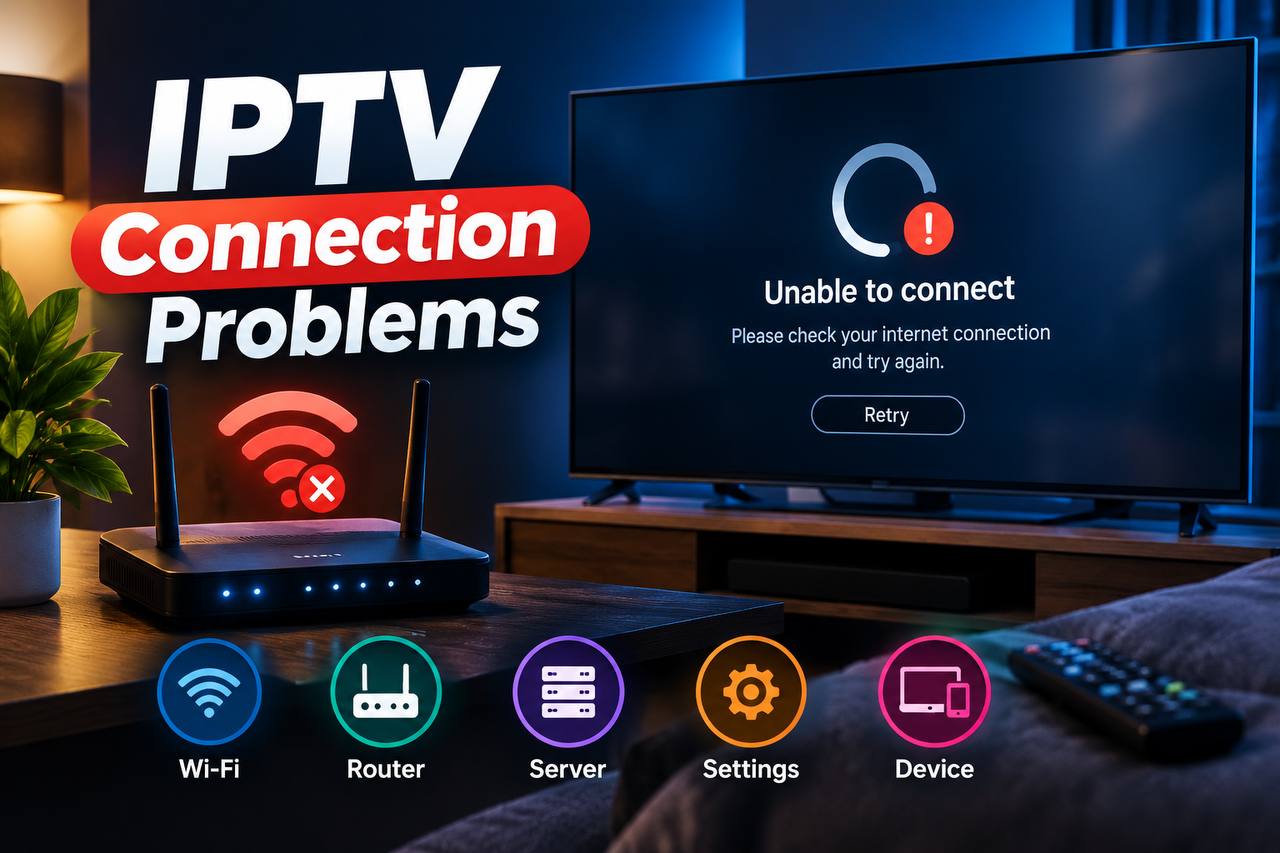
IPTV Connection Problems
Most playback issues stem from your home network, the streaming device, or the service provider itself. To fix IPTV connection errors, you must first identify if the fault lies with your hardware or your account credentials. A systematic approach helps you isolate the root cause quickly, especially when dealing with IPTV Connection Problems.
By checking your internet speed and app settings, you can often restore high-quality video in minutes. This guide will walk you through the most effective steps to ensure your digital entertainment remains seamless and reliable, helping you avoid frustrating IPTV Connection Problems.
Key Takeaways
- Verify your internet speed to ensure it meets the minimum requirements for high-definition streaming.
- Restart your router and streaming device to clear temporary cache errors.
- Check your service subscription status to ensure your credentials remain active.
- Update your streaming application to the latest version for better compatibility.
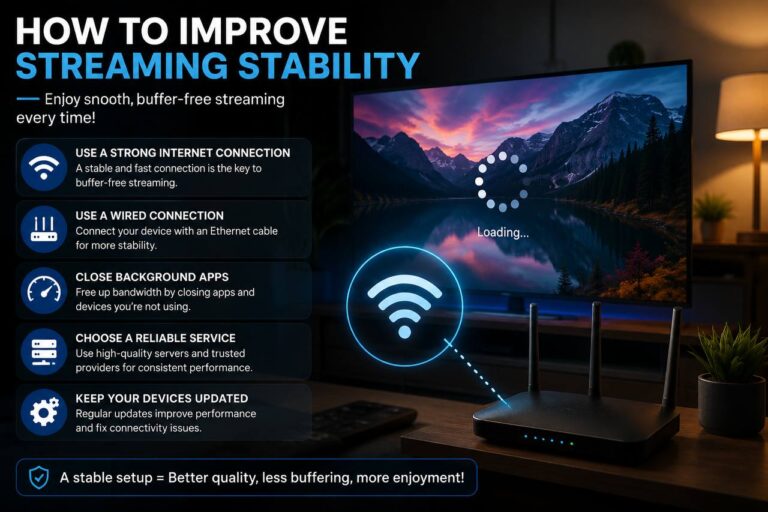
- Use a wired Ethernet cable instead of Wi-Fi to reduce signal interference.
Why IPTV Connection Problems Happen
Understanding the root causes of IPTV Connection Problems is essential for anyone looking to enjoy a seamless streaming experience. While many users assume that a fast internet plan solves every issue, the reality of digital video delivery is far more complex.

Edit
Full screen
Delete
IPTV Connection Problems
How Internet Speed, Latency, and Packet Loss Affect IPTV
Raw download speed is only one piece of the puzzle. Even with a high-speed connection, latency—the time it takes for data to travel—can cause significant delays in live broadcasts, which often triggers annoying IPTV Connection Problems.
If your network experiences high jitter or packet loss, the stream will likely stutter or freeze. These technical glitches occur when data packets fail to arrive in the correct order or get lost entirely during transmission, leading straight to IPTV Connection Problems.
How to Distinguish Service Failures From Home Network Problems
Effective troubleshooting for IPTV Connection Problems starts by identifying where the bottleneck actually exists. If you notice that every channel fails simultaneously, the issue is likely on the provider’s end.
However, if only specific devices in your home are struggling, the problem is usually local. You should check your router settings and local Wi-Fi interference before contacting your service provider for support.
Why HD and 4K Streams Need More Consistent Bandwidth
High-definition and 4K content require a much larger and more stable stream of data compared to standard-definition video. When your bandwidth fluctuates, the player cannot buffer enough content to maintain a smooth picture.
This instability often leads to IPTV Connection Problems during peak viewing hours. Ensuring a consistent connection is vital for maintaining the high bitrate required for a crisp, clear 4K image.
Check Whether the IPTV Service Is Down
Many users rush to reset their hardware when they encounter streaming errors, but the problem might actually be on the provider’s end. Before you dive into complex network configurations, it is essential to fix IPTV connection issues by first ruling out a widespread service outage. Taking this simple step can save you significant time and frustration.

Edit
Full screen
Delete
IPTV connection troubleshooting
Verify Service Status With the Official Provider
Most reputable services maintain a dedicated status page or an active social media presence to alert users of downtime. If you cannot access your stream, check these official channels for any announcements regarding server maintenance or unexpected outages. Always verify information from the source to ensure you are not chasing a ghost in your own home network.
Compare Multiple Channels and On-Demand Titles
Effective IPTV connection troubleshooting involves testing a variety of content to isolate the scope of the problem. If only one specific channel is failing while others work perfectly, the issue is likely a localized stream error rather than a total service collapse or IPTV Connection Problems. Conversely, if every single channel and on-demand movie fails to load, the problem is almost certainly at the provider level.
Check Whether the Account or Subscription Has Expired
Sometimes, the issue is not technical at all, but rather a simple matter of account status. Ensure that your subscription is active and that your payment method has not recently failed. You should log into your provider’s member portal to confirm that your credentials remain valid and that your service has not been suspended due to an expired term.
| Symptom | Likely Cause | Recommended Action |
| All channels show errors | Service Outage | Check provider status page |
| Only one channel fails | Source/Stream Issue | Wait or try another link |
| Login failed/Invalid user | Account Expiration | Verify subscription status |
| Buffering on all content | Local Network | Restart your home router |
Test and Stabilize the Internet Connection
A stable internet connection is the backbone of any high-quality streaming experience. When you encounter IPTV Connection Problems, the issue often stems from your local network rather than the service provider itself. Taking a methodical approach to testing your hardware can help you identify and resolve these bottlenecks quickly.
Run Speed Tests on the Same Device Used for Streaming
Many users make the mistake of testing their speed on a smartphone while their television struggles to load content. To get an accurate reading, you must run your speed test directly on the device experiencing IPTV Connection Problems. This ensures that the results reflect the actual bandwidth reaching your streaming hardware.
Check Download Speed, Upload Speed, Ping, and Packet Loss
Relying solely on download speed is a common oversight when trying to fix IPTV connection issues. You should also monitor your ping and packet loss, as high latency can cause significant stuttering even on fast connections. A stable stream requires low ping and zero packet loss to maintain a consistent feed.
Restart the Modem and Router in the Correct Order
If your connection remains unstable, a power cycle is often the most effective of all IPTV buffering solutions. Start by unplugging your modem and waiting at least thirty seconds for it to fully power down. Once the modem is back online and synchronized, proceed to restart your router to refresh the local network path.
Reduce Network Congestion From Downloads, Gaming, and Video Calls
Your home network has limited capacity, and competing traffic can easily degrade your streaming quality and cause IPTV Connection Problems. High-bandwidth activities like large file downloads, online gaming, or video conferencing will consume the resources your stream needs to function. Temporarily pausing these activities allows your device to prioritize the data required for smooth, uninterrupted playback.
Fix IPTV Buffering on Wi-Fi
Wireless interference is often the silent culprit behind frustrating streaming interruptions. When your signal struggles to penetrate walls or compete with other household devices, you will likely encounter playback issues. Implementing effective IPTV buffering solutions can restore your service to its full potential.
Move the Streaming Device Closer to the Router
Physical obstacles like thick walls, metal appliances, and furniture significantly degrade your signal strength. Try to maintain a clear line of sight between your router and your streaming device to prevent IPTV Connection Problems. If moving the hardware is not possible, even a slight adjustment to the antenna or the device position can drastically improve your connection quality.
Choose the Best 5 GHz or 2.4 GHz Wi-Fi Band
Most modern routers offer dual-band connectivity, and choosing the right one is essential to fix IPTV Connection Problems. The 5 GHz band provides faster speeds and less interference, making it ideal for high-definition streaming at a shorter range. Conversely, the 2.4 GHz band travels further through walls, which is better if your device is located in a distant room.
Switch to Ethernet for Televisions and Streaming Boxes
While wireless technology is convenient, it remains susceptible to environmental noise and signal drops, which often result in IPTV Connection Problems. For stationary devices like smart TVs or dedicated streaming boxes, a wired Ethernet connection is the gold standard for reliability. Plugging directly into your router eliminates the variables of Wi-Fi congestion and ensures a consistent data flow for your streams.
Improve Coverage With a Mesh Wi-Fi System
If you live in a larger home, a single router often fails to provide a strong signal in every corner, leading to IPTV Connection Problems. A mesh Wi-Fi system uses multiple nodes to create a seamless, high-speed network throughout your entire living space. This setup effectively removes dead zones and provides the stable bandwidth required for smooth, uninterrupted television viewing.
Resolve Router and DNS Issues
Your home network hardware often acts as a silent gatekeeper for your streaming experience. When you encounter persistent buffering or connection drops, the problem may not be your service provider, but rather the internal settings of your local network. Effective troubleshooting for IPTV Connection Problems requires a systematic review of your router and DNS configurations to ensure they are not inadvertently blocking your media streams.
Update Router Firmware and Confirm Stable Configuration
Outdated router firmware is a common culprit for network instability. Manufacturers frequently release updates that patch security vulnerabilities and improve the handling of high-bandwidth traffic. You should log into your router’s administrative panel to check for available updates and ensure your network stability is prioritized.
Change DNS Servers on Windows, Android, iPhone, or a Router
Sometimes, the default DNS servers provided by your ISP struggle to resolve the addresses required for your streaming services. Switching to a faster, more reliable public DNS can significantly improve your IPTV connection troubleshooting efforts. You can apply these changes directly on your streaming device or globally across your entire home network via the router settings.
| DNS Provider | Primary Server | Secondary Server | Best For |
| Google Public DNS | 8.8.8.8 | 8.8.4.4 | General Stability |
| Cloudflare | 1.1.1.1 | 1.0.0.1 | Speed and Privacy |
| OpenDNS | 208.67.222.222 | 208.67.220.220 | Security Filtering |
Disable Conflicting Parental Controls and Traffic Filters
Many modern routers include aggressive parental controls or traffic filtering features designed to block malicious content. Unfortunately, these filters often misidentify legitimate streaming traffic as suspicious, leading to IPTV Connection Problems. If you experience issues, try disabling these features temporarily to see if your streaming performance improves.
Recognize When a Factory Reset Is Appropriate
A factory reset should be your last resort when dealing with persistent IPTV Connection Problems. This process wipes all custom configurations, including your Wi-Fi name, password, and port forwarding rules. Before proceeding, ensure you have recorded all your current network details so you can restore your connection quickly after the reset is complete.
Correct IPTV App and Device Errors
Effective IPTV Connection Problems often begin by addressing common glitches within the streaming application. Many users encounter loading failures, frozen menus, or repeated sign-in prompts that stem from internal software conflicts rather than external network issues.
Force-Close and Reopen IPTV Apps
When an application becomes unresponsive, the simplest fix is to force-close it completely to prevent further IPTV Connection Problems. This action clears the active session and allows the software to restart from a clean state. On most modern streaming devices, you can access the running apps menu to terminate the specific process before launching it again.
Clear Cache and App Data on Android TV and Fire TV
Temporary files often accumulate over time, leading to sluggish performance or playback errors that can cause IPTV Connection Problems. Navigating to the settings menu on Android TV or Fire TV allows you to clear the app cache safely. Clearing the cache removes temporary data without deleting your login credentials, which often resolves minor display bugs.
Update IPTV Apps, Roku Software, Apple TV, and Google TV
Outdated software is a frequent culprit for compatibility problems. Ensure that both your streaming application and the device operating system are running the latest versions. Developers frequently release patches to fix IPTV Connection Problems that arise after system updates.
Reinstall the App Without Losing Legitimate Account Details
If performance issues persist, a fresh installation is often necessary to resolve ongoing IPTV Connection Problems. Before deleting the app, ensure you have your subscription details, such as your M3U link or Xtream Codes, saved in a secure location. Reinstalling the application removes corrupted files that standard updates might miss.
Check Device Storage, Date, Time, and System Permissions
Your device requires sufficient free storage to buffer high-quality streams effectively. Additionally, incorrect date and time settings can cause authentication failures with your provider’s server. Always verify that your device has the necessary system permissions enabled to access the network and storage.
| Common Error | Primary Cause | Recommended Fix |
| App Freezing | Corrupted Cache | Clear Cache Data |
| Login Loop | Incorrect Time/Date | Sync System Clock |
| Playback Failure | Outdated App Version | Update Application |
| Buffering | Low Device Storage | Delete Unused Apps |
Adjust Streaming Quality for a More Reliable Picture
Fine-tuning your playback settings often provides the relief needed for a smoother viewing experience. When your internet connection cannot sustain a high-bitrate stream, these adjustments serve as effective IPTV Connection Problems solutions to keep your content playing without constant interruptions.
Lower Resolution When Bandwidth Is Unstable
High-definition and 4K streams require significant data throughput to maintain a clear image. If your network speed fluctuates, forcing your device to render a lower resolution can prevent IPTV Connection Problems and stop the stream from stalling entirely.
Most modern streaming applications allow you to manually select a lower quality setting, such as 720p or 480p. Reducing the resolution significantly lowers the bandwidth demand, which often prevents IPTV Connection Problems and stabilizes the connection during peak usage hours.
Use Automatic Quality Settings When the App Supports Them
Many advanced IPTV players include an “Auto” quality feature designed to monitor your current network health in real-time. This setting dynamically adjusts the video bitrate based on your available speed to prevent IPTV Connection Problems.
By enabling this feature, the application will automatically drop the quality during moments of congestion and increase it again once your connection stabilizes, helping to prevent IPTV Connection Problems. This proactive approach ensures that you spend less time waiting for the video to load.
Choose a Suitable Buffer or Playback Delay
Sometimes, a small increase in the playback buffer can compensate for minor network jitters. By allowing the device to pre-load a few extra seconds of content, you create a safety net against temporary drops in speed that typically trigger IPTV Connection Problems.
While this is one of the most reliable IPTV buffering solutions, keep in mind that it comes with a trade-off. A larger buffer may increase the time it takes to switch between channels or start a new video.
Balance Picture Quality Against Network Reliability
Finding the right balance between visual fidelity and network stability is essential for a frustration-free experience and avoiding IPTV Connection Problems. You might prefer a crisp 1080p image, but if your connection is unstable, a slightly lower resolution will provide a much more consistent stream.
Prioritize smooth playback over raw pixel count to ensure your favorite shows and live sports remain uninterrupted while avoiding IPTV Connection Problems. Adjusting these settings allows you to enjoy your content even when your home network is under heavy load.
Troubleshoot IPTV Connection Problems on Common Devices
Every streaming device handles network data differently, which is why specific fixes are necessary for your hardware. When you encounter IPTV Connection Problems, the solution often depends on the operating system and the internal hardware of your player. By isolating the issue to your specific device, you can apply targeted solutions that restore your stream quickly.
Amazon Fire TV Stick and Fire TV Cube
Restart the Device and Clear the IPTV App Cache
A simple restart often clears temporary glitches that cause playback errors and IPTV Connection Problems. Navigate to the settings menu, select “My Fire TV,” and choose “Restart.” If the issue persists, clear the app cache by going to “Applications,” selecting “Manage Installed Applications,” and choosing “Clear Cache” for your IPTV player.
Check Wi-Fi Signal Strength and Available Storage
Fire TV devices require sufficient internal storage to buffer video data effectively to prevent IPTV Connection Problems. Ensure you have at least 500MB of free space. Additionally, check the network settings to confirm your Wi-Fi signal strength is “Good” or “Excellent.”
Android TV and Google TV Devices
Review App Permissions, Updates, and Battery Restrictions
Android-based systems sometimes restrict background data to save power, which can lead to IPTV Connection Problems. Check your settings to ensure the IPTV app has unrestricted battery usage permissions. Also, verify that the app is updated to the latest version via the Google Play Store.
Test Ethernet and Wi-Fi Connections Separately
If you are using a wired connection, unplug the cable and test the Wi-Fi to see if the network interface is the culprit behind your IPTV Connection Problems. Conversely, if you are on Wi-Fi, connecting via Ethernet often provides the most stable experience for high-bitrate content.
Roku Streaming Players and Roku TVs
Recheck the Network Connection and Restart Roku
Roku devices perform best when the network configuration is refreshed to resolve IPTV Connection Problems. Go to “Settings,” then “System,” and select “System Restart.” After the device reboots, verify your connection status in the network menu.
Remove and Reinstall the Authorized IPTV Application
Corrupted app files can lead to persistent IPTV Connection Problems. Highlight the app on your home screen, press the asterisk (*) button, and select “Remove channel.” Reinstall it from the Roku Channel Store to ensure a clean configuration.
Apple TV, iPhone, and iPad
Update tvOS or iOS and Restart Network Settings
Outdated software can cause compatibility issues with streaming protocols. Always ensure your device is running the latest OS version to prevent IPTV Connection Problems. If problems continue, reset your network settings to clear out old configurations that might interfere with your connection.
Confirm the App Works on the Current Apple Device Version
Some older apps may not be optimized for the latest Apple hardware. Check the App Store to see if a newer version of your IPTV player is available. If the app is no longer supported, you may need to look for alternative IPTV buffering solutions.
Samsung and LG Smart TVs
Restart the Television and Refresh Its Network Connection
Smart TVs often stay in a standby mode that can cause network handshake errors. Perform a full power cycle by unplugging the TV from the wall for 60 seconds. Once it reboots, navigate to the network settings and select “Refresh” or “Reconnect.”
Use a Wired Connection When the Built-In Wi-Fi Is Unstable
Built-in Wi-Fi modules in televisions are often less powerful than external streaming boxes. If you experience frequent drops, use an Ethernet cable to bypass wireless interference. This is the most reliable way to maintain a consistent stream on large smart displays.
| Device Type | Primary Fix | Secondary Fix |
| Fire TV | Clear Cache | Check Storage |
| Android TV | Battery Settings | Update App |
| Roku | System Restart | Reinstall App |
| Apple TV | Update OS | Reset Network |
| Smart TV | Power Cycle | Use Ethernet |
Fix Login, Playlist, and Electronic Program Guide Failures
A common hurdle in IPTV connection troubleshooting involves authentication and configuration errors. While many users assume buffering is always a network issue, your service may fail to load due to incorrect account details or outdated playlist links. Identifying these specific faults is a vital part of effective IPTV Connection Problems resolution and troubleshooting IPTV.
Reenter Username, Password, and Provider Portal Details Carefully
If you receive an authentication error that triggers IPTV Connection Problems, the first step is to verify your login credentials. Typos are common when using a remote control to type long strings of characters. Ensure that your username and password match the information provided by your service exactly, paying close attention to case sensitivity.
Additionally, confirm that the server portal URL is entered without any trailing spaces, as these can easily trigger IPTV Connection Problems. Even a single hidden character can prevent the application from establishing a secure connection to the provider’s server.
Check M3U Playlist, Xtream Codes, and EPG Information
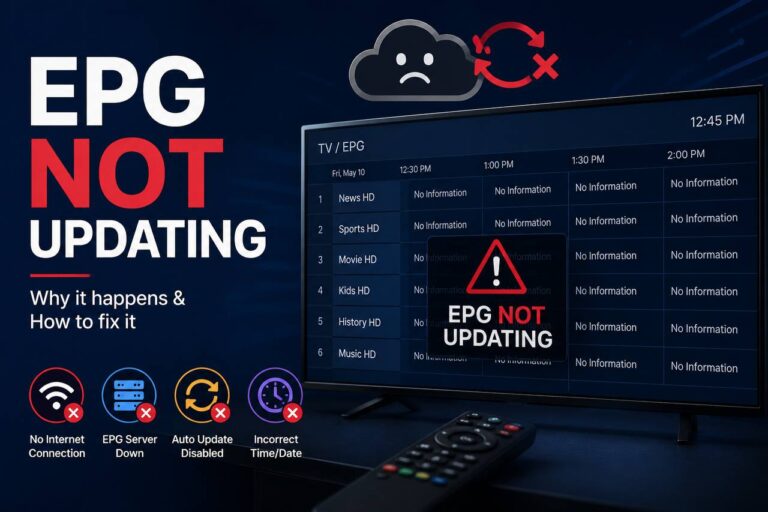
Many services rely on M3U links or Xtream Codes to populate your channel list. If your channels appear empty or fail to load, the playlist URL might be broken or improperly formatted, leading to IPTV Connection Problems. Double-check that your EPG (Electronic Program Guide) URL is also active, as a missing guide often indicates a communication error between your app and the provider.
Correct Expired Links, Invalid Tokens, and Server Addresses
Subscription services often use security tokens that expire after a set period. If your access suddenly stops, your token may have become invalid, resulting in IPTV Connection Problems and requiring a refresh from your provider’s dashboard. Always ensure that the server address you are using is the most current one provided by your service, as older addresses are frequently decommissioned.
Resolve Missing Channels or Guide Data After an App Update
Application updates can sometimes reset internal configurations or clear local cache files. If you notice missing channels after an update, you may need to re-input your playlist settings or force a manual refresh of the guide data. This process ensures the app correctly maps the latest stream sources to your interface.
| Error Type | Common Cause | Recommended Action |
| Authentication Failed | Incorrect login credentials | Re-type username and password |
| Empty Channel List | Broken M3U or Xtream link | Verify URL and refresh playlist |
| Missing EPG Data | Expired or wrong EPG URL | Update guide source settings |
| Access Denied | Expired subscription token | Contact provider for renewal |
Identify ISP Blocking and VPN-Related Issues
Understanding how your ISP interacts with your traffic is a vital step in IPTV connection troubleshooting. Sometimes, your internet service provider may inadvertently throttle or block specific traffic patterns associated with streaming services. This can lead to persistent buffering or total service outages that seem unrelated to your home hardware.
Recognize DNS Errors, Regional Restrictions, and ISP Routing Problems
Network issues often stem from how your data travels across the internet, frequently resulting in IPTV Connection Problems. DNS errors frequently prevent your device from locating the correct server, while regional restrictions might block access based on your IP address. Furthermore, inefficient ISP routing can force your data to take a long, congested path, which significantly degrades stream quality.
Test the Connection With and Without a Lawful VPN Service
Using a lawful VPN service is a common way to determine if your ISP is causing the bottleneck. If your stream performs better while connected to a VPN, it suggests that your provider might be applying traffic shaping or routing restrictions. However, keep in mind that encryption overhead can sometimes introduce its own latency.
Choose a Nearby VPN Server Without Sacrificing Speed
When you decide to use a VPN to fix IPTV Connection Problems, server selection is critical. Always choose a location geographically close to your home to minimize the distance data must travel. Connecting to a distant server often results in unnecessary speed loss, which can make a high-definition stream stutter or fail entirely.
Contact the IPTV Provider Before Changing Advanced Network Settings
Before you start modifying complex router configurations or changing firewall rules, reach out to your service provider. They often have specific recommendations for network settings that ensure compatibility with their infrastructure. Making unauthorized changes to your network can sometimes create more problems than it solves.
| Issue Type | Primary Symptom | Recommended Action |
| DNS Failure | App cannot load content | Switch to public DNS |
| ISP Throttling | Buffering during peak hours | Use a secure VPN |
| Regional Block | Content unavailable error | Select local VPN node |
| Routing Delay | High ping and lag | Contact ISP support |
Prevent Recurring IPTV Streaming Problems
You can transform your viewing habits by adopting a proactive maintenance strategy for your home network to prevent IPTV Connection Problems. Instead of relying on constant troubleshooting efforts, you can create a stable environment that keeps your streams running smoothly around the clock.
Keep the Router, Streaming Device, and IPTV App Updated
Software updates are essential for maintaining compatibility and security, preventing potential IPTV Connection Problems. Manufacturers frequently release patches that fix bugs causing playback errors or connection drops. Always ensure your firmware is current to avoid unnecessary technical hurdles.
Schedule Router Restarts and Monitor Network Performance
Routers often accumulate temporary data that can slow down your connection over time, which frequently leads to IPTV Connection Problems. Scheduling a weekly reboot helps clear the system cache and refreshes your network path. Monitoring your performance metrics allows you to spot instability before it impacts your viewing experience.
Use Ethernet for High-Bitrate Live Sports and 4K Content
Wireless signals can fluctuate due to interference from other household electronics, which is a common cause of IPTV Connection Problems. For the most demanding content, such as live sports or 4K movies, a wired connection is the gold standard. Using an Ethernet cable provides the consistent bandwidth required to implement effective IPTV buffering solutions.
Maintain a Consistent Internet Plan With Adequate Data Capacity
Your internet service provider plays a major role in your overall streaming quality. Ensure your plan offers enough speed and data capacity to handle your household’s total traffic, preventing IPTV Connection Problems. Avoiding data caps prevents your ISP from throttling your connection during peak usage hours, which is a common cause of sudden playback issues.
Conclusion
Reliable entertainment depends on a systematic approach to troubleshooting. You can resolve most IPTV Connection Problems by isolating the root cause through a logical sequence of checks. Start by verifying your service status before moving to your home network, router, and specific streaming device.
Effective maintenance requires you to test your internet speed and stabilize your hardware. You should prioritize a wired Ethernet connection for high-bitrate content to ensure the best results. When you fix IPTV Connection Problems by clearing app caches or updating firmware, you prevent future interruptions during your favorite live sports or movies.
Focus on practical, lawful adjustments to your setup rather than complex network configurations to prevent IPTV Connection Problems. Keeping your software current and monitoring your bandwidth usage will maintain a high-quality picture. Consistent performance is achievable when you manage your home environment with these simple steps. Enjoy your seamless viewing experience with confidence.
FAQ
What are the most common causes of iptv connection problems?
Most issues are tied to one of four factors: your internet connection stability, the streaming device hardware (such as an Amazon Fire TV Stick or Nvidia Shield), the IPTV application software, or the service provider’s server status. Effective troubleshooting IPTV involves isolating each of these variables to see where the communication breakdown is occurring, which helps you quickly resolve any underlying IPTV Connection Problems.
How can I fix iptv connection issues that cause constant buffering?
The most effective iptv buffering solutions involve stabilizing your bandwidth. Start by running a speed test via Speedtest.net or Fast.com on the same device you use for streaming. Ensure your ping and jitter levels are low, as high latency can disrupt a live stream even if your download speed seems adequate. For the best results, switch from Wi-Fi to a wired Ethernet connection to provide the consistent throughput required for HD and 4K content.
How do I know if the IPTV service is down or if the problem is my home network?
To determine the source of the failure, try opening other streaming apps like YouTube or Netflix on the same device. If they work perfectly, the issue is likely with the IPTV provider. You should also try switching between different channels and on-demand titles within your IPTV app; if only one channel is failing, it is a server-side issue. If all channels fail, check your account expiration status or verify your M3U playlist credentials to rule out any persistent IPTV Connection Problems.
Why does my IPTV stream work on my phone but not on my Amazon Fire TV or Samsung Smart TV?
This often points to a device-specific issue or network interference, which can easily trigger IPTV Connection Problems. Smart TVs often have weaker Wi-Fi antennas compared to smartphones. During IPTV connection troubleshooting, try clearing the app cache on your Fire TV or Android TV by navigating to Settings > Applications. Additionally, ensure the device is not tucked behind the TV where the metal frame can block the Wi-Fi signal from your TP-Link or Netgear router.
Can changing my DNS settings help fix iptv connection errors?
Switching to public DNS servers like Cloudflare (1.1.1.1) or Google (8.8.8.8) is one of the quickest ways to bypass ISP-imposed restrictions, avoid slow domain resolutions, and prevent minor IPTV Connection Problems. Because default ISP routers often use sluggish lookup tables, third-party alternatives provide faster response times and improved reliability.
Is a VPN necessary for troubleshooting iptv performance issues?
A VPN can be a double-edged sword. If your ISP is intentionally throttling your traffic or if there are routing issues between your home and the IPTV server, using a service like ExpressVPN or NordVPN can resolve these IPTV Connection Problems. However, the encryption process can sometimes slow down your connection. Always test your stream both with and without the VPN to see which configuration provides the most stable playback.
How do I fix an Electronic Program Guide (EPG) that won’t update?
If your channel list is visible but the guide is empty, it is usually a synchronization error within the app, such as TiviMate or IPTV Smarters Pro, which can contribute to overall IPTV Connection Problems. Check that the EPG M3U URL is entered correctly in the settings. Sometimes, simply clearing the app data and re-importing your Xtream Codes or playlist link will force the app to fetch the latest guide information from the server.
What are the best iptv buffering solutions for slow internet connections?
If your bandwidth is limited, try lowering the stream resolution from 1080p to 720p or SD within the app settings. You can also look for a “Buffer Size” or “Playback Delay” setting in apps like Perfect Player or TiviMate. Increasing the buffer to 5 or 10 seconds allows the device to pre-load more data, which helps maintain a smooth picture during temporary drops in internet speed and prevents sudden IPTV Connection Problems.
Why does my IPTV app keep asking for my login details?
This typically happens if your M3U link has expired or if the provider has updated their server address. It can also occur if you are using the same account on more devices than your subscription allows, which directly triggers persistent IPTV Connection Problems. Verify your account status with your provider and ensure you are using the most recent version of the app from the Google Play Store or Apple App Store to avoid compatibility bugs.
How can I prevent iptv connection problems from happening in the future?
Regular maintenance is key. Restart your modem and router at least once a week to clear out memory leaks. Keep your streaming hardware, like your Roku or Apple TV, updated to the latest firmware. Finally, if you frequently watch high-bitrate live sports or 4K movies, investing in a high-quality Mesh Wi-Fi system like eero or Google Nest Wifi can ensure your home network can handle the heavy data load without dropping the connection. For any technical support or assistance, feel free to contact us at +212698133253.